One of the most important things in the robot design is the possibility to check and control the values feeded by the analogic sensors, i.e. accelerometers, gyros, IR sensors.
In order to view the sensor values you can use the Serial Port that can be displayed in the Serial Monitor inside the Arduino IDE environment.
But it isn’t possible to show charts or save the data read from the sensors.
There are several software that allow to show the graphs derived from the sensors data, and I published in the past a tutorial (here).
Usually you use Processing or similar language that require always to write some code. You have to write code to change the charts or to implement new lines in the graphs.
I thought that the ideal situation would be to use a software that everyone knows: Microsoft Excel.
If it were possible to use Excel to receive the data from the serial port, it would be easy to make very nice and user friendly charts.
I searched in Google and i found a sw that allows easily to view the serial port values in Excel.
The sw is made by a competitor of Arduino, Parallax, the company that sells the Boe-Bot and the Propeller, wich are in direct competition with Arduino.
The sw is called PLX-DAQ and it is a free software. You can download it here. It works only in Windows, sorry.
In practice it is a little sw in VBA that adds some features to Excel to receive and elaborate real time data. If the data are in Excel it is also possible to save them in a file and it is possible to use the amazing function library already present in the spreadsheet software. The documentation about PLX-DAQ is complete and clear.
The PLX-DAQ takes commands in uppercase and every data row have to end with a ‘carriage return’. The serial port speed required by PLX-DAQ is particular, because it derives from Parallax world. In any case the rate is from 9600 bit/sec to 128.000 bit/sec. The speed of 128.000 bit/sec works fine in the Arduino!!
The main commands are:
- LABEL used to define the column headings. The command format is: Serial.println (“LABEL, INT_COLUMN”);
- DATE, TIME that allows the serial port to send data to Excel. The first field is always TIME, then the fields of interest (val). The command format is: Serial. print (“DATE, TIME,”); Serial.println (val)
- ROW, SET, k, allows you to define the next line to write. It is useful if you want to plot n data and then go back to first row and cycle. For example, you can plot 1000 data on the chart and then start again from the first position, in order to avoid a graph too large. The command format is: Serial.println (ROW, SET, 2) put the cursor in the second line next step.
Here’s an example that shows Excel function sin (x).
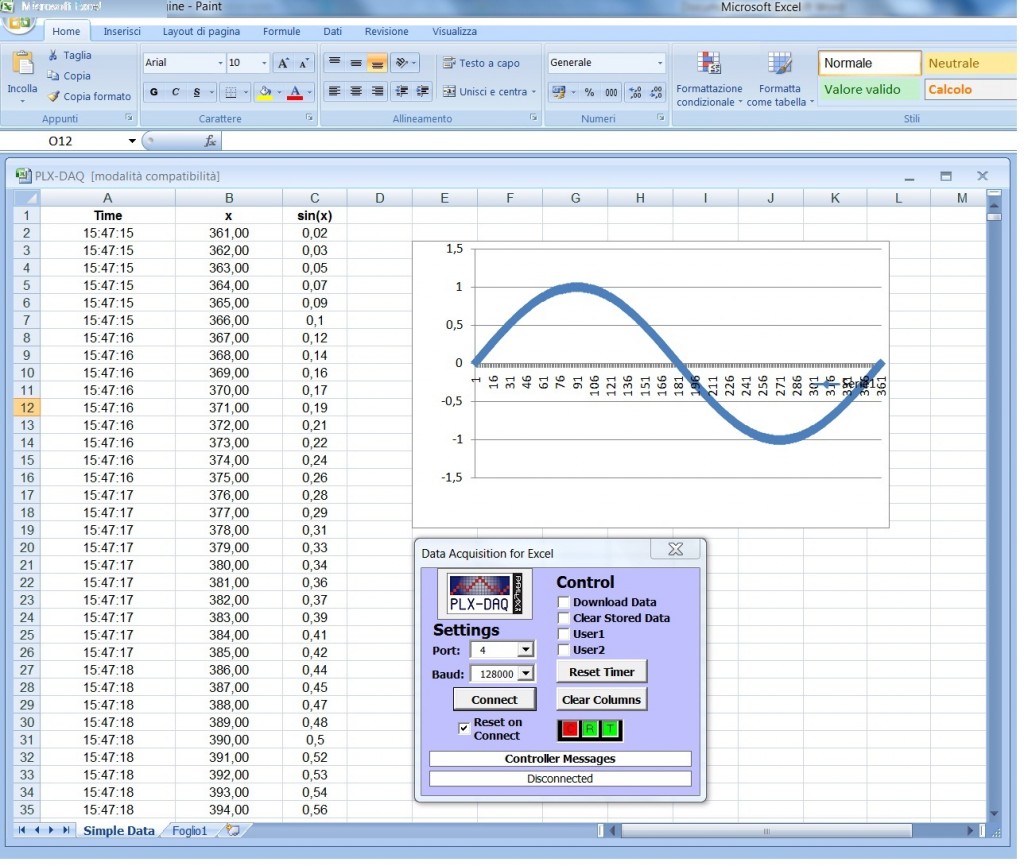
The Arduino code:
int x = 0;
int row = 0;
void setup() {
  Serial.begin(128000); // opens serial port, sets data rate to 128000 bps
  Serial.println("CLEARDATA");
  Serial.println("LABEL,Time,x,sin(x)");
}

void loop() {
  Serial.print("DATA,TIME,"); Serial.print(x); Serial.print(","); Serial.println(sin(x*PI/180));
  row++;
  x++;
  if (row > 360)
   {
    row=0;
    Serial.println("ROW,SET,2");
   }
  delay(100);
}
PLX-DAQ enable a more complex interaction with Excel. It can take the cell values from Excel, it can read and write check box. You can see the PLX-DAW documentation for other details.
#1 by shriram on 2 November 2018 - 11:26
Quote
sir,
We understand that we can log data through serial port. If we continuously log , the file become too large. How can we creat new file automatically when date is changed. Can it creat new folder when month is changed ?
Pl reply
shriram
#2 by Prediksi Skor Piala Dunia Terpercaya on 20 October 2017 - 19:27
Quote
Іt’s amazing inn fɑvor of me to havgе a web site, which іs valuable in supрort of my knowledge.
thanks admin
#3 by Mimi on 9 July 2017 - 06:34
Quote
I have installed plx-daq but I couldn’t find my sensor data in its spread sheet but output is present in serial monitor.
case 1:
I executed below code
int x = 0;
int row = 0;
void setup() {
Serial.begin(9600); // opens serial port, sets data rate to 128000 bps
Serial.println(“CLEARDATA”);
Serial.println(“LABEL,Time,x,sin(x)”);
}
void loop() {
Serial.print(“DATA,TIME,”); Serial.print(x); Serial.print(“,”); Serial.println(sin(x*PI/180));
row++;
x++;
if (row > 360)
{
row=0;
Serial.println(“ROW,SET,2”);
}
delay(100);
}
this code output is present in both serial monitor as well as in PLX-DAQ spreadsheet.
but when I run another simple code for led blink like below code
void setup() {
// make pin 13 an output pin
pinMode(13, OUTPUT);
// open Serial communication port
Serial.begin(9600);
Serial.println(“CLEARDATA”);
Serial.println(“Time,status”);
}
void loop() {
// make pin 13 HIGH (5 V) so that LED comes on
digitalWrite(13, HIGH);
// print message to serial port that LED is on
Serial.println(“TIME,on”);
// wait for 1 second
delay(1000);
// make pin 13 LOW (0 V) so that LED goes off
digitalWrite(13, LOW);
// print message to serial port that LED is off
Serial.println(“TIME,off”);
// wait for 1 second
delay(1000);
}
Its output is present in serial monitor but cannot be fetched in PLX-DAQ spreadsheet
Please help me out ….
#4 by Anonymous on 16 December 2017 - 05:13
Quote
must be put in “LABEL” before TIME,STATUS
#5 by dinie on 15 May 2017 - 13:36
Quote
i need help.. i installed LDR at position 30,60 and 90 degree..if i have stepper motor, how to rotate it at higher intensity of LDR
#6 by check it out on 4 April 2017 - 17:03
Quote
Right now it appears like Movable Type is the preferred blogging
platform out there right now. (from what I’ve read) Is that what you’re using on your blog?
#7 by Shubham Gupta on 24 February 2017 - 11:18
Quote
Hurrah, that’s what I was looking for, what a information! present here at this website,
thanks admin of this web site.
#8 by S. C. Park on 17 February 2017 - 09:57
Quote
Thank you for your kindness!
I’ve a question.
You said about arduino file.
But I don’t know that what name and where I save the file.
Thanks a lot
Park,
#9 by blessi on 10 February 2017 - 07:14
Quote
How to modify the below code to read data from sensor to excel
#define trigPin1 3
#define echoPin1 2
#define trigPin2 4
#define echoPin2 5
#define trigPin3 7
#define echoPin3 8
long duration, distance, RightSensor,BackSensor,FrontSensor,LeftSensor;
char Right;
void setup()
{
Serial.begin (9600);
pinMode(trigPin1, OUTPUT);
pinMode(echoPin1, INPUT);
pinMode(trigPin2, OUTPUT);
pinMode(echoPin2, INPUT);
pinMode(trigPin3, OUTPUT);
pinMode(echoPin3, INPUT);
}
void loop() {
SonarSensor(trigPin1, echoPin1);
RightSensor = distance;
SonarSensor(trigPin2, echoPin2);
LeftSensor = distance;
SonarSensor(trigPin3, echoPin3);
FrontSensor = distance;
Serial.print(LeftSensor);
Serial.print(“-“);
Serial.print(FrontSensor);
Serial.print(“-“);
Serial.println(RightSensor);
}
void SonarSensor(int trigPin,int echoPin)
{
digitalWrite(trigPin, LOW);
delayMicroseconds(2);
digitalWrite(trigPin, HIGH);
delayMicroseconds(10);
digitalWrite(trigPin, LOW);
duration = pulseIn(echoPin, HIGH);
distance = (duration/2) / 29.1;
}
#10 by da apprentice on 16 November 2016 - 21:14
Quote
any help with plotting these on excel;
temperature1 temperature2, pressure 1 pressure 2 .
only getting two columns of data presently
// start the sensor
Serial.print(“start()\t\t”);
Serial.println(ssc.start());
Serial.println(“LABEL,Time”);
Serial.println(Temperature1Pin);
Serial.println(Temperature2Pin);
Serial.println(Pressure1Pin);
Serial.println(Pressure2Pin);
}
void loop()
{
// update pressure / temperature
Serial.print(“update()\t”);
Serial.println(ssc.update());
Serial.print(“DATA,TIME,”);
// print pressure
Serial.print(“pressure()\t”);
Serial.print(ssc.pressure());
digitalRead(Pressure1Pin);
Serial.print(Pressure1Pin);
digitalRead(Pressure2Pin);
Serial.print(Pressure2Pin);
// print temperature
Serial.print(“temperature()\t”);
Serial.print(ssc.temperature());
digitalRead(Temperature1Pin);
Serial.print(Temperature1Pin);
digitalRead(Temperature1Pin);
Serial.print(Temperature2Pin);
delay(5000);
Serial.print(Pressure1Pin);
Serial.print(Pressure2Pin);
Serial.print(Temperature1Pin);
Serial.print(Temperature2Pin);
}
thanks
#11 by jimmy on 13 November 2016 - 13:00
Quote
Hi , I’m using arduino to control the intensity of the lights also using the real time clock to tell at what time the intensity should increase. Therefore I need to capture the data of time against intensity from the serial monitor. Please help. Here is the code I’m using:
#include
#include “RTClib.h”
int led = 9; // the PWM pin the LED is attached to
int brightness = 0; // how bright the LED is
int fadeAmount = 1; // how many points to fade the LED by
int start_process = 0; // trigger led brightness
int control = 1;
RTC_DS1307 RTC;
void setup () {
Serial.begin(57600);
Wire.begin();
RTC.begin();
if (! RTC.isrunning()) {
Serial.println(“RTC is NOT running!”);
// following line sets the RTC to the date & time this sketch was compiled
RTC.adjust(DateTime(F(__DATE__),F( __TIME__)));
// RTC.adjust(DateTime(2016,10,25,18,9,0));
//adjust(DateTime(F(__DATE__), F(__TIME__)));
pinMode(led,OUTPUT);
}
}
void loop () {
DateTime now = RTC.now();
Serial.print(now.year(), DEC);
Serial.print(‘/’);
Serial.print(now.month(), DEC);
Serial.print(‘/’);
Serial.print(now.day(), DEC);
Serial.print(‘ ‘);
Serial.print(now.hour(), DEC);
Serial.print(‘:’);
Serial.print(now.minute(), DEC);
Serial.print(‘:’);
Serial.print(now.second(), DEC);
Serial.println();
Serial.println();
if (now.second() == 30 && control == 1){
start_process = 1;
}
if (start_process == 1){
analogWrite(led, brightness);
brightness = brightness + fadeAmount;
control == 0;
if (brightness == 255)
{
start_process = 0;
}
}
else if (start_process == 0 && brightness > 0){
brightness = brightness – fadeAmount;
analogWrite(led, brightness);
if (brightness == 0)
control = 1;
}
Serial.println(brightness);
Serial.println(start_process);
//
// }
delay(1000);
}
#12 by Sawyer on 2 November 2016 - 19:09
Quote
Nice program, but I have a question. I am trying to log +10 temperature and humidity readings through plx-daq. But I can’t for the life of me get the software to give me more than 5 columns. I need at least 14 columns to keep all my data straight. Is there a way to print more than just 5 columns in the plx-daq? If so, how do you do it? Thanks 🙂
#13 by Trez on 27 October 2016 - 16:57
Quote
How can use the same idea to read data in real time in matlab
#14 by hunter on 25 October 2016 - 17:09
Quote
plz help i am working with hc-sr04 sensors how can i send the sensor data from arduion to pxl daq this is my code .
#include
//Sonar 1
int echoPin1 =12;
int initPin1 =2;
int distance1 =0;
//Sonar 2
int echoPin2 =7;
int initPin2 =4;
int distance2 =0;
void setup() {
pinMode(initPin1, OUTPUT);
pinMode(echoPin1, INPUT);
pinMode(initPin2, OUTPUT);
pinMode(echoPin2, INPUT);
Serial.begin(9600);
}
void loop() {
double distance3,distance4;
double atan2(double , double );
float angl,angle;
distance1 = getDistance(initPin1, echoPin1);
printDistance(1,distance1);
delay(250);
distance2 = getDistance(initPin2, echoPin2);
printDistance(2,distance2);
delay(250);
if(distance1>distance2){
distance3=distance1-distance2;
// the distance between the two sensor is 14cm
angl = round( atan2 (distance3,14) * 180/3.14159265 );
Serial.print(“difference is : “);
Serial.print(distance3);
Serial.println(” cm”);
Serial.print(“angle is : “);
Serial.print(angl);
Serial.println(” Deg”);
Serial.println(“____________________________”);
}
else if(distance1 = 400 || distance > “);
Serial.println(” Out of range”);
}
else{
Serial.print(“==>> Distance is : “);
Serial.print(distance);
Serial.println(” cm”);
}
}
#15 by Mauricio on 4 October 2016 - 23:21
Quote
Good Morning, error: “StampDAQ could not connect please check the port setting” por favor me ayuda,,, please help me.
#16 by Xin on 12 July 2016 - 09:02
Quote
Hi Rob,
I am facing the same issue as you. May I know if you have solved it already? Please advise.
Thank you.
#17 by Rob on 27 June 2016 - 16:43
Quote
Robottini,
Could you please help me with the PLX-DAQ to display the sinus curve?
The Arduino code works for me. I was also able to open the PLX-DAQ file without any error message. I was able to connect but unable to see anything on my excel spreadsheet.
I noticed that once I uploaded the Arduino program into the board I was not able to connect from the PLX-DAQ since my port is being used by Arduino (busy). I had to unplug my USB connection first to be able to establish a connection with the PLX-DAQ .
Could you please advise how to address my connection and display the sinus data from the serial monitor to excel?
Thanks so much in advance!
#18 by Rob on 23 June 2016 - 20:29
Quote
I’m new to Arduino and PLX-DAW. I am trying to show the table and graph on excel from the sinus function you posted here but I could not get anything to work in Excel.
The sketch worked in Arduino as I was able to see the output through the Serial Monitor. In Excel, I was able to set the COM port and establish a connection and see a “R” box flashing red. However, I do not see anything else going on in Excel spreadsheet and wonder if I missed anything.
Your feedback is highly appreciated.
#19 by Saurabh Singh on 23 June 2016 - 14:36
Quote
I am writing this code but i am not getting the value of the sensors in the excel sheet ,i am just getting the value of time
void setup() {
Serial.begin(9600); // put your setup code here, to run once:
Serial.println(“CLEARDATA”);
Serial.println(“LABEL,Time,Timer,X-axis,Y-axis,Z-axis”);
Serial.println(“RESETTIMER”);
pinMode(A0,OUTPUT);
pinMode(A4,OUTPUT);
digitalWrite(A0,HIGH);
digitalWrite(A4,LOW);
}
void loop() {
int i,j,k;
i=analogRead(A1);
j=analogRead(A2);
k=analogRead(A3);
Serial.print(i);
Serial.print(” “);
Serial.print(j);
Serial.print(” “);
Serial.println(k);
Serial.println(“DATA,TIME,TIMER”);
Serial.println(i);
Serial.println(j);
Serial.println(k);
delay(100);
}
#20 by robottini on 24 June 2016 - 06:02
Quote
Change this part:
void loop() {
int i,j,k;
i=analogRead(A1);
j=analogRead(A2);
k=analogRead(A3);
Serial.print(i);
Serial.print(” “);
Serial.print(j);
Serial.print(” “);
Serial.println(k);
Serial.println(“DATA,TIME,TIMER”);
Serial.println(i);
Serial.println(j);
Serial.println(k);
delay(100);
}
with this:
void loop() {
int i,j,k;
i=analogRead(A1);
j=analogRead(A2);
k=analogRead(A3);
Serial.print(“DATA,TIME,TIMER,”);
Serial.print(i);
Serial.print(”,“);
Serial.print(j);
Serial.print(”,“);
Serial.println(k);
delay(100);
}
#21 by Joey on 6 June 2016 - 17:15
Quote
Hello,
Congrats on the program, I really like it a lot.
I like the fact that you can log your data from the Arduino to Excel…but can you read data from Excel onto the Arduino? If so, can you show me an example please.
Please and thank you for your time.
#22 by CHO HILARY SCOTT NKIMBENG on 6 June 2016 - 09:20
Quote
please i wish to find out how i can extract data from a serial monitor of the Arduino from Pir Sensors to an excel file for processing.
please can you help me with the code.
#23 by hanin on 24 May 2016 - 05:07
Quote
hi
i’m new in both programming and arduino. I have uploaded this code to detect motion thru arduino. I need to store the outputs in excel. currently, my arduino circuit contain pir sensor and real time clock device. can someone help me ?
#include
#include “RTClib.h”
#define DS32321_ADDRESS 0x68
byte zero = 0x00;
int ledPin = 13;
int inputPin = 2;
int pirState = LOW;
int val = 0;
long unsigned int pause = 5000;
RTC_DS3231 rtc;
char daysOfTheWeek[7][12] = {“Sunday”, “Monday”, “Tuesday”, “Wednesday”, “Thursday”, “Friday”, “Saturday”};
void setup(){
pinMode(ledPin, OUTPUT);
pinMode(inputPin, INPUT);
Serial.begin(9600);
#ifndef ESP8266
while (!Serial); // for Leonardo/Micro/Zero
#endif
delay(3000); // wait for console opening
if (! rtc.begin()) {
Serial.println(“Couldn’t find RTC”);
while (1);
}
if (rtc.lostPower()) {
Serial.println(“RTC lost power, lets set the time!”);
rtc.adjust(DateTime(F(__DATE__), F(__TIME__)));
}
}
void loop(){
val = digitalRead(inputPin); // read sensor value
if (val == HIGH) { // check if the sensor is HIGH
digitalWrite(ledPin, HIGH); // turn LED ON
delay(100); // delay 100 milliseconds
if (pirState == LOW) {
Serial.println(“Motion detected!”);
printDate();
pirState = HIGH; // update variable state to HIGH
}
}
else {
digitalWrite(ledPin, LOW); // turn LED OFF
delay(200); // delay 200 milliseconds
if (pirState == HIGH){
pirState = LOW; // update variable state to LOW
}
}
}
void printDate(){
DateTime now = rtc.now();
Serial.print(now.year(), DEC);
Serial.print(‘/’);
Serial.print(now.month(), DEC);
Serial.print(‘/’);
Serial.print(now.day(), DEC);
Serial.print(” (“);
Serial.print(daysOfTheWeek[now.dayOfTheWeek()]);
Serial.print(“) “);
Serial.print(now.hour(), DEC);
Serial.print(‘:’);
Serial.print(now.minute(), DEC);
Serial.print(‘:’);
Serial.print(now.second(), DEC);
Serial.println();
delay(3000);
}
#24 by k.r.santhosh kumar on 7 May 2016 - 20:54
Quote
I have uploaded this code to detect blood pressure thru arduino. I need to store the outputs in excel. I have 2013 office suite. Can u please explain the steps in including those outputs in excel. Also, please tell how to view these changes.
float PressureMin = -15; //psi
float PressureMax = 15; //psi
float Vsupply = 5; //psi
int analogPin = A0; //analog input
float volta = 0;
int i;
float maxvolt = 0;
float volt = 0;
float pressure = 0;
float MAP = 0;
float maxv = 0;
void setup()
{
pinMode(analogPin,INPUT);
Serial.begin(9600);
}
void loop()
{
digitalWrite(3,HIGH);
for(i=0 ; i<80 ;i++) //array for output voltages that runs 80 times with a delay of 0.25 seconds
{
volta = analogRead(analogPin);
Serial.println(volta);//reading from pressure sensor
volt = (volta*Vsupply)/(pow(2,10)-1);
maxv = max(abs(volt-2.5),maxvolt);
maxvolt = abs(maxv-2.5); //offset that transducer has
delay(250);
}
pressure =(((maxvolt)-.1*Vsupply)/((.8*Vsupply)/(PressureMax-PressureMin)))+PressureMin; // pressure at port 2 calculated by subtracting pressure from atmospheric pressure in psi
Serial.println(maxvolt);
Serial.println(pressure);
MAP= -1*(14.7-pressure*-1)*51.7 – 3.16/maxvolt; //mmHg
digitalWrite(3,LOW);
Serial.print(" MAP = ");
Serial.print(MAP);
Serial.print(" ");
Serial.print(MAP*1.1);
Serial.print(" / ");
Serial.print(MAP*0.8);
while(1) //will not allow Arduino to keep calculating values continuously
{}
}
#25 by abhishek on 20 April 2016 - 14:40
Quote
Hi, I’ve been searching for solutions on forums but haven’t really found a conclusive one for this yet. I downloaded PLX-DAQ to use with Microsoft Excel 2013 on Windows 8, but when I load the PLX-DAQ Spreadsheet, I first get the error: “Could not load an object because it is not available on this machine,” then another: “Could not load some objects because they are not available on this machine.” Pressing “OK” on both opens a Microsoft Visual Basic Run-time error ‘424’: “Object required,” with an option to Debug, which opens the code with “Stamp.Disconnect” under “Private Sub cboPort_Click()” highlighted.
block of code with the error:
Private Sub cboPort_Click()
Stamp.Disconnect
cmdConnect.Caption = “Connect”
FlagConnect = False
Stamp.Port = cboPort
End Sub
I’m working under admin, and so far I’ve set Excel to allow macros,
#26 by robottini on 20 April 2016 - 20:59
Quote
Sorry, the PLX-DAQ doesn’t work with Excel 2007 – 2013. It works fine until Excel 2003. It is no more maintained by Parallax.
#27 by ulaa on 9 April 2016 - 09:26
Quote
Halo, would you mind to help this code?
i create a program to connect among arduino, plx-daq and weight scale.
when i upload my code there is no data in to excel column, but the R and C blink in PLX-DAQ program when I press the scale weight as an input.
this the code
#include
SoftwareSerial mySerial1(0, 1);
String datatimbangan;
char datacopy[64];
char datastabil[64];
int a=0, z=1;
int b;
int baris_a=2, baris_b=2;
String ket;
void setup()
{
Serial.begin(9600);
Serial1.begin(9600);
mySerial1.begin(9600);
pinMode (2, INPUT);
pinMode (5, OUTPUT);
pinMode (6, OUTPUT);
Serial.println (“CLEARDATA”);
Serial.println (“LABEL, TARA, BRUTO”);
}
void loop ()
{
Serial.print (“DATA, TIME,”);
// Serial.println (val);
// val =0;
if (Serial.available() >0)
{
datatimbangan = mySerial1.readStringUntil(10);
datatimbangan.toCharArray(datacopy, 15);
strncpy (datastabil, datacopy, 2);
if (strcmp (“S 0 g”, datacopy) == 0&& z ==1)
{
digitalWrite(6, HIGH);
delay(100);
digitalWrite(6, LOW);
delay(50);
digitalWrite(6, HIGH);
delay(100);
digitalWrite(6, LOW);
z=0;
a=1;
//=====
Serial.print(datatimbangan);
// Starttime = millis();
}
if (strchr(datacopy, ‘-‘)==NULL)
{
if(strcmp (“S”, datastabil) == 0 &&
strcmp (“S 0 g”, datacopy) != 0 && a==1)
{
datatimbangan.replace(‘S’, ‘ ‘);
datatimbangan.replace(‘g’, ‘ ‘);
datatimbangan.trim();
Serial.print(“CELL,SET,”);
Serial.print(ket);
if (b==1){Serial.print(baris_a);baris_a++ ;}
else if (b!=1) {Serial.print(baris_b); baris_b++;}
Serial.println(“,” + datatimbangan);
a=0;
z=1;
digitalWrite(6, HIGH);
delay(100);
digitalWrite(6, LOW);
}
}
}
if (digitalRead(2)==HIGH)
{
ket=”A”;
b=1;
digitalWrite(5, LOW);
}
else if (digitalRead(2) == LOW)
{
ket=”B”;
b=0;
digitalWrite(5, HIGH);
}
}
====
thank you
#28 by Robert on 1 April 2016 - 01:57
Quote
Wont work for me. Used your exact code too. I am using windows 10 and excel 2003. Everything goes smoothly through but no data is ever uploaded even though it says its connected… is this a windows 10 problem?
#29 by robottini on 1 April 2016 - 07:40
Quote
Sorry, I don’t use windows 10, so I can’t try. Maybe someone could try?
#30 by luis on 15 March 2016 - 06:57
Quote
Hello, can you help me.
my code causes a focus green lights if you pass the test and a red light if it fails the test.
I want you to look in excel that passed and those who do not, too Lahore each test.
1 = step test
0 = not pass the test
#define 4 // button start button.
#define sensPres 5 //pressure sensor
#define 6 //luzAmari yellow light
#define 7 //luzVerde Green Light
luzRoja 8 // #define Red Light
electroSuj 9 // #define Solenoid for fastening glove
10 // #define electroaire glove filling solenoid valve
void setup () {
pinMode (button, INPUT);
pinMode (sensPres, INPUT);
pinMode (luzAmari, OUTPUT);
pinMode (luzVerde, OUTPUT);
pinMode (luzRoja, OUTPUT);
pinMode (electroSuj, OUTPUT);
pinMode (electroaire, OUTPUT);
digitalWrite (luzAmari, LOW);
digitalWrite (luzVerde, LOW);
digitalWrite (luzRoja, LOW);
digitalWrite (electroSuj, LOW);
digitalWrite (electroaire, LOW);
}
void loop () {
if (digitalRead (button));
{
digitalWrite (luzAmari, HIGH);
digitalWrite (electroSuj, HIGH); //
delay (1000);
digitalWrite (electroaire, HIGH);
while (! digitalRead (sensPres))
delay (100);
digitalWrite (electroaire, LOW);
delay (5000);
digitalWrite (luzAmari, LOW);
if (digitalRead (sensPres))
digitalWrite (luzVerde, HIGH);
else
digitalWrite (luzRoja, HIGH);
digitalWrite (electroSuj, LOW);
delay (5000);
digitalWrite (luzVerde, LOW);
digitalWrite (luzRoja, LOW);
}
delay (10);
}
Thank you very much
#31 by chelsi on 9 February 2016 - 13:40
Quote
Now i changed the serial com number to 3..Now @Com 3 i am able to connect i am seeing the data receiving,but the data not displaying in Excel,in PLX-DAQ status showing as connected..kindly guide me
#32 by chelsi on 4 February 2016 - 09:19
Quote
hii
i am not finding serial com38 in PLX-DAQ ,could u please guide me how to get data in serial monitor.
Pingback: Arduino UNO Datalogger Project for Complete Beginners (ie: no soldering) | Arduino based underwater sensors
#33 by Lohit on 11 January 2016 - 08:51
Quote
Hi,
I want to display both date and time on excel using an arduino. How do i do that?
Thank you.
#34 by Marc on 22 December 2015 - 21:09
Quote
Hello
PLX-DAQ was working just fine for me until I installed Win 10.
In excel I am connected at 9600 baud, I see the Rx data going from red to green in response to the incoming data, but no data is loaded into the cells.
Any ideas?
#35 by aida on 18 December 2015 - 06:08
Quote
Hello Hi there, may I know where the x value come from. because I am using light sensor. and the input got from A0, i put the light sensor to A0. so the sensor value I got I will convert to voltage and to intensity. may I know what is the x stand for? so we know why we sin the value. Thanks for the clarification
#36 by Djinn on 7 December 2015 - 23:35
Quote
I can confirm that this works with x64 win 8.1 with office 2014 with arduino UNO
I used this code to test my system:
int val = 0;
int val1 = 0;
void setup() {
Serial.begin(9600);
Serial.println(“CLEARDATA”); // clear data in excel
}
void loop()
{
Serial.print(“DATA,TIME,”); // send command to excel
Serial.println(val1); // send data
val1 = random(0, 100); // random bet 0 and 100
delay(3000);
}
Once I did determine that this code works, I mod’d to work with my weather station.
Here is a few pointers:
baud rate does not matter here. I am using 56000 for my station. Just make sure the PLX and Serial.begin() equal and set on your COM port. Mine is set to COM 3.
To add more columns just remember to keep the data in a stream with a comma. They are trying to show this in this line of code:
Serial.print(“DATA,TIME,”); Serial.print(x); Serial.print(“,”); Serial.println(sin(x*PI/180));
Here is my example:
serial.print(“DATE,TIME,:);
serial.print(sensordata);
serial,print(“,”);
serial.print(sensor2data);
serial,print(“,”);
serial.print(sensor3data);
serial,print(“,”);
serial.println(); // <— this is end of the data stream
example of out come: TIME , sensordata, sensor2data, sensor3data
MOST OF ALL – SERIAL MONITOR MUST BE CLOSED FOR IT TO CONNECT
good luck
#37 by safala on 1 December 2015 - 02:43
Quote
according to above method I am reading 6 sensors values and saving in excel but the last column always have issue. See Serial.println(“CLEARDATA”);
Serial.println(“LABEL,Time,A0,A1,A2,A3,A4,A5”); but at out put I am not getting value for A5
Time A0 A1 A2 A3 A4 A5
8:42:02 423.00 384 484 412 380 ,
the reading and code is as follows:
Serial.print(“DATA,TIME,”);
Serial.print(analogRead(analogPin1));Serial.print(“,”);
Serial.print(analogRead(analogPin2));Serial.print(“,”);
Serial.print(analogRead(analogPin3));Serial.print(“,”);
Serial.print(analogRead(analogPin4));Serial.print(“,”);
Serial.println(analogRead(analogPin5));Serial.print(“,”);
Serial.println(analogRead(analogPin6));
#38 by ahlipp on 8 October 2015 - 04:03
Quote
I am using an wiegand RFID reader, my project is attendant system so how can I transmit data to excel sheet using PLX-DAQ, some one can help me please..
#include
#include
#define buzzer 13 // pin untuk buzzer
long unsigned int id; // variable untuk simpan rfid punyer id
LiquidCrystal lcd(7, 8, 9, 10, 11, 12);//(RS,E,D4,D5,D6,D7)
WIEGAND wg;
void setup() {// put your setup code here, to run once:
Serial.begin(9600); // serial connection setup
lcd.begin(20, 4); // lcd setup
wg.begin();
pinMode(buzzer,OUTPUT);
lcd.noDisplay(); // off kan lcd
delay(500);
lcd.display(); //on kan lcd
}// end void setup
void loop() {// put your main code here, to run repeatedly:
lcd.clear();
lcd.setCursor(0,1);
lcd.print(“please Touch card”);
if(wg.available())
{
lcd.clear();
id = wg.getCode();
switch(id){
case 7767257:
Serial.println(“First ID”);
lcd.setCursor(0,1);
lcd.print(“student name”);
lcd.setCursor(0,2);
lcd.print(” ID student”);
beep();
break;
case 16724953:
Serial.println(“second ID”);
lcd.setCursor(0,0);
lcd.print(“student name”);
lcd.setCursor(0,2);
lcd.print(“ID student”);
beep();
break;
case 434393:
Serial.println(“third ID”);
lcd.setCursor(0,1);
lcd.print(“student name”);
lcd.setCursor(0,2);
lcd.print(“ID student”);
beep();
break;
default:
Serial.println(“Invalid”);
beep();
break;
}
delay(1000);
}
delay(500);
}// end void loop
void beep(){
digitalWrite(buzzer,HIGH);
delay(500);
digitalWrite(buzzer,LOW);
}
#39 by Denis on 7 October 2015 - 19:43
Quote
It seems PLX-DAQ does not working at x64 system.
#40 by robottini on 7 October 2015 - 20:47
Quote
Yes, I confirm. PLX-DAQ works in the x64 systems only with Office 2003. With new Office versions doesn’t work. Sorry but PLX-DAQ is not maintained anymore
#41 by Crtek on 5 April 2015 - 00:08
Quote
i’m still having problems with getting plx-daq working (works fine on my laptop though)
i get the “could not load an object…” error
when i try and run the regsvr32 thing, i get another error that says “the module fm20.dll was loaded but the call to DllRegisterServer failed with error code 0x80040151
any advice?
#42 by Ayesha on 19 February 2015 - 06:25
Quote
hi,
I’m working with Zigbees and trying to get the data being recieved by the arduino in an excel sheet using PLX-DAQ, but Im unable to..
I cannot figure out whats wrong..
When i run my code it only prints the LABELS on the excel sheet.
here is my code.
byte readValue1=0;
byte readValue2=0;
int add=0;
int row=0;
int Zigbee=0;
void setup() {
Serial.begin(9600);
Serial.println(“CLEARDATA”);
Serial.println(“LABEL,Time,Zigbee,a1,a2,a3,a4,a5,a6,a7”);
}
void loop(){
String a;
int b;
if (Serial.available()>21){
if(Serial.read() == 0x7E) {
for(int i=0; i<10; i++){
byte discard = Serial.read();
}
add = Serial.read();
if(add == 33)
{
a = func1();
//b = a.length();
if(b != 0)
{
Zigbee=1;
Serial.print("DATA,TIME,"); Serial.print(Zigbee);
Serial.print(","); Serial.print(a);
row++;
}
}
else if(add == 48)
{
a = func1();
//b = a.length();
if(b != 0)
{
Zigbee=2;
Serial.print("DATA,TIME,"); Serial.print(Zigbee);
Serial.print(","); Serial.print(a);
row++;
}
}
else if(add == 69)
{
a = func1();
//b = a.length();
if(b != 0)
{
Zigbee=3;
Serial.print("DATA,TIME,"); Serial.print(Zigbee);
Serial.print(","); Serial.print(a);
row++;
}
}
}
}
}
String func1()
{
String names = "";
for(int i=0; i<7; i++){
byte discard = Serial.read();
}
readValue1=Serial.read();
char binary[9] = {0};
readValue1 += 128;
itoa(readValue1,binary,2);
char* string = binary + 1;
if(binary[3]=='1')
{
names=names + 1 + ",";
}
if(binary[4]=='1')
{
names=names + 2 + ",";
}
readValue2=Serial.read();
char binary1[9] = {0};
readValue2 += 128;
itoa(readValue2,binary1,2);
char* string1 = binary1 + 1; /
for(int i=3; i<8; i++)
{
if(binary1[i]=='1')
{
names=names + i + ",";
}
}
return names;
}
#43 by ironmanz on 2 February 2015 - 18:53
Quote
hi i am still learning arduino programming. i found a sketch online which is on energymonitor. i would like to interface it with parallax daq but i cant seem to find the right codes. the data only reads on the first column. pls someone help me. this is the codes from openenergymonitor.org
would mean a lot if someone could help me. thanks
// EmonLibrary examples openenergymonitor.org, Licence GNU GPL V3
#include “EmonLib.h” // Include Emon Library
EnergyMonitor emon1; // Create an instance
int row = 0;
float realPower = 0; //extract Real Power into variable
float apparentPower=0; //extract Apparent Power into variable
float powerFactor=0; //extract Power Factor into Variable
float Vrms=0; //extract Vrms into Variable
float Irms=0; //extract Irms into Variable
void setup()
{
Serial.begin(9600);
Serial.println(“CLEARDATA”);
Serial.println(“LABEL,Time,RealPower,ApparentPower,Voltage,Current,PowerFactor”);
emon1.voltage(2, 234.26, 1.7); // Voltage: input pin, calibration, phase_shift
emon1.current(1, 13.3); // Current: input pin, calibration.
}
void loop()
{
Serial.print(“DATA,TIME,”);
row++;
if (row>360)
{
row=0;
Serial.println(“ROW,SET,2”);
}
delay(1000);
emon1.calcVI(20,2000); // Calculate all. No.of half wavelengths (crossings), time-out
Serial.print(emon1.realPower); Serial.println(“,”);
Serial.print(emon1.apparentPower); Serial.println(“,”);
Serial.print(emon1.Vrms); Serial.println(“,”);
Serial.print(emon1.Irms); Serial.println(“,”);
Serial.print(emon1.powerFactor); Serial.println(“,”);
}
#44 by shalika on 6 January 2015 - 18:38
Quote
I want to print ‘dark’,’middle light’and ‘light’ according to the LDR sensor value. can any one help me to do the modification of following code.
const int analogInPin = A2;
int sensorValue = 0;
void setup() {
Serial.begin(9600);
}
void loop() {
sensorValue = analogRead(analogInPin);
if(sensorValue 201)
{
Serial.println(“light” );
delay(500);
}
else Serial.println(“middle light” );
delay(500);
}
#45 by emerjer on 8 December 2014 - 03:44
Quote
Hello, I have been having the same runtime error message as #2 Varun. Is there a solution for this?
I’m also using the same code you provided along with Excel2013.
#46 by Alexis Roberts on 10 November 2014 - 04:10
Quote
I am using an Parllax RFID reader and want to use this software to get my data from my serial monitor to the excel sheet.
Any suggestions for coding so I can get my information to excel?
#include
//Parallax RFID Reader
#define RFIDEnablePin 2 //Pin that enables reading. Set as OUTPUT and LOW to read an RFID tag
#define RFIDSerialRate 2400 //Parallax RFID Reader Serial Port Speed
//Using SoftwareSerial Library to locate the serial pins off the default set
//This allows the Arduino to be updated via USB with no conflict
#define RxPin 5 //Pin to read data from Reader
#define TxPin 4 //Pin to write data to the Reader NOTE: The reader doesn’t get written to, don’t connect this line.
SoftwareSerial RFIDReader(RxPin,TxPin);
String RFIDTAG=””; //Holds the RFID Code read from a tag
String DisplayTAG = “”; //Holds the last displayed RFID Tag
void setupRFID()
{
// RFID reader SOUT pin connected to Serial RX pin at 2400bps
RFIDReader.begin(RFIDSerialRate);
// Set Enable pin as OUTPUT to connect it to the RFID /ENABLE pin
pinMode(RFIDEnablePin,OUTPUT);
// Activate the RFID reader
// Setting the RFIDEnablePin HIGH will deactivate the reader
// which could be usefull if you wanted to save battery life for
// example.
digitalWrite(RFIDEnablePin, LOW);
Serial.begin(9600); // set up Serial library at 9600 bps
Serial.println(“Hello world!”); // prints hello with ending line break
}
void loopRFID()
{
if(RFIDReader.available() > 0) // If data available from reader
{
ReadSerial(RFIDTAG); //Read the tag number from the reader. Should return a 10 digit serial number
}
//This only displays a tag once, unless another tag is scanned
if(DisplayTAG!=RFIDTAG)
{
DisplayTAG=RFIDTAG;
Serial.println(RFIDTAG);
}
}
void ReadSerial(String &ReadTagString)
{
int bytesread = 0;
int val = 0;
char code[10];
String TagCode=””;
if(RFIDReader.available() > 0) { // If data available from reader
if((val = RFIDReader.read()) == 10) { // Check for header
bytesread = 0;
while(bytesread 0) {
val = RFIDReader.read();
if((val == 10)||(val == 13)) { // If header or stop bytes before the 10 digit reading
break; // Stop reading
}
code[bytesread] = val; // Add the digit
bytesread++; // Ready to read next digit
}
}
if(bytesread == 10) { // If 10 digit read is complete
for(int x=0;x 0) //Burn off any characters still in the buffer
{
RFIDReader.read();
}
}
bytesread = 0;
TagCode=””;
}
}
}
#47 by allone on 9 November 2014 - 15:13
Quote
how can i add the day (date) please
#48 by Rui Carapinha on 18 September 2014 - 22:51
Quote
Hi, i’m a newbie in Arduino Programming and I want to connect my 4 pin HC-SR04 to PLX-DAQ to register the values on excel. Can someone help me ?
Here is the code to show the results in cm to the Serial Monitor.
#define trigPin 13
#define echoPin 12
void setup() {
Serial.begin (9600);
pinMode(trigPin, OUTPUT);
pinMode(echoPin, INPUT);
}
void loop() {
long duration, distance;
digitalWrite(trigPin, LOW);
delayMicroseconds(2);
digitalWrite(trigPin, HIGH);
delayMicroseconds(10);
digitalWrite(trigPin, LOW);
duration = pulseIn(echoPin, HIGH);
distance = (duration/2) / 29.1;
if (distance >= 200 || distance <= 0){
Serial.println("Out of range");
}
else {
Serial.print(distance);
Serial.println(" cm");
}
delay(1000);
}
Thanks
#49 by Dale Bryan on 30 July 2014 - 07:01
Quote
PLX-DAQ is so easy to use. In less than 2 minute I had it up and running. In 4 minute I had it collecting data from a temp sensor with its code set perfectly in my Sketch
#50 by Konrad on 25 July 2014 - 18:03
Quote
Hello!
Im trying to use PLX-DAQ with Bluetooth over serial port but it does not work! (connection BLuettoh – PC is done, I can identify which COM it is, it works via putty).
When I choose port and baudrate in PLX-DAQ Excel plugin it does not find it… only finds cable usb connection.
Is there any solution for that? How can i gather data live from Bluetooth to Excel?
Thanks!
#51 by Nuno Lourenço on 23 July 2014 - 12:03
Quote
i found a solution. thank you
#52 by Nuno Lourenço on 22 July 2014 - 14:14
Quote
Hi,
I have tried PLX-DAQ, and everything works fine with 5 columns of data (time, val, val1, val2, val3).
Then i changed the code to add one more column to collect the data of one more variable (val4).
The problems start here, the column name was added, but the data doesn’t appear in column val4.
Here is my code:
#define FASTADC 1
// defines for setting and clearing register bits
#ifndef cbi
#define cbi(sfr, bit) (_SFR_BYTE(sfr) &= ~_BV(bit))
#endif
#ifndef sbi
#define sbi(sfr, bit) (_SFR_BYTE(sfr) |= _BV(bit))
#endif
int value[256]; // variable to store the value coming from the sensor
int value1[256];
int value2[256];
int value3[256];
int value4[256];
//unsigned long time[256];
int i=0;
int ROW = 0; // variavel que se refere as linhas do excel
int LABEL = 1;
void setup()
{
Serial.begin(9600) ;
Serial.println(“CLEARDATA”); // Reset da comunicação serial
Serial.println(“LABEL,Time,val,val1,val2,val3,val4”); // Nomeia as colunas
#if FASTADC
// set prescale to 16
sbi(ADCSRA,ADPS2) ;
cbi(ADCSRA,ADPS1) ;
cbi(ADCSRA,ADPS0) ;
#endif
}
void loop()
{
delay(5000);
//unsigned long tempo = micros();
for (i=0;i<256;i++)
{
value[i]=analogRead(0);
value1[i]=analogRead(1);
value2[i]=analogRead(2);
value3[i]=analogRead(3);
value4[i]=analogRead(4);
delayMicroseconds(380); //valor 380 para uma onda de 50 Hz
}
for (i=0;i 255) //laço para limitar a quantidade de dados
{
ROW = 0;
delay(5000);
Serial.println(“ROW,SET,2”); // alimentação das linhas com os dados sempre iniciando
}
//Serial.println(value[i]);
//Serial.println(time[i]);
}
//Serial.println();
//Serial.println();
//Serial.println();
//delay(1000);
//delayMicroseconds(10);
}
Can anyone help me please? i can’t add more than 5 columns of data, the announced limit is 26, i don’t know what i’m doing wrong.
best regards
#53 by Kenneth Moore on 4 June 2014 - 16:45
Quote
Hi Ive use PLX-DAQ to create a basic light spectrometer and chart the data live to Excel. If your interested take a look at
http://www.instructables.com/id/Light-Spectrometer-from-a-head-inspection-lamp/
ON THE INSTRUCTABLES WEB SITE
#54 by Lennert on 19 May 2014 - 15:07
Quote
Hi!
Could you please help me with changing the following code for it to work real time in excell? Im really new with the whole programming…
// this constant won’t change. It’s the pin number
// of the sensor’s output:
const int pingPin = 7;
void setup() {
// initialize serial communication:
Serial.begin(9600);
}
void loop()
{
// establish variables for duration of the ping,
// and the distance result in inches and centimeters:
long duration, inches, cm;
// The PING))) is triggered by a HIGH pulse of 2 or more microseconds.
// Give a short LOW pulse beforehand to ensure a clean HIGH pulse:
pinMode(pingPin, OUTPUT);
digitalWrite(pingPin, LOW);
delayMicroseconds(2);
digitalWrite(pingPin, HIGH);
delayMicroseconds(5);
digitalWrite(pingPin, LOW);
// The same pin is used to read the signal from the PING))): a HIGH
// pulse whose duration is the time (in microseconds) from the sending
// of the ping to the reception of its echo off of an object.
pinMode(pingPin, INPUT);
duration = pulseIn(pingPin, HIGH);
// convert the time into a distance
cm = microsecondsToCentimeters(duration);
Serial.print(cm);
Serial.print(“cm”);
Serial.println();
delay(100);
}
long microsecondsToInches(long microseconds)
{
// According to Parallax’s datasheet for the PING))), there are
// 73.746 microseconds per inch (i.e. sound travels at 1130 feet per
// second). This gives the distance travelled by the ping, outbound
// and return, so we divide by 2 to get the distance of the obstacle.
// See: http://www.parallax.com/dl/docs/prod/acc/28015-PING-v1.3.pdf
return microseconds / 74 / 2;
}
long microsecondsToCentimeters(long microseconds)
{
// The speed of sound is 340 m/s or 29 microseconds per centimeter.
// The ping travels out and back, so to find the distance of the
// object we take half of the distance travelled.
return microseconds / 29 / 2;
}
Thanks in advance!
#55 by Daniel Moriau on 4 May 2014 - 16:31
Quote
Congratulations for your program,
Is there a solution to activate a macro in excel, depending on the value of a cell? If there is, which code should i use? I thank you in advance for your response.
Daniel Moriau
Pingback: Importing Data from Arduino to Excel (Real Time) | hedproject
#56 by dhinasty on 24 March 2014 - 11:51
Quote
how to display a PLX-DAQ in the Webserver
I ask you please explain step by step thank you
#57 by Clay on 7 March 2014 - 03:32
Quote
Hey I’m trying to write a sketch that involves 2 IR sensors at each end of an inclined track. I am using a moving object i.e. toy car, cart, etc. which has a LED attached. Once the moving object passes the sensor, a timer is activated then deactivated once the moving object crosses the final IR sensor of the track. By using PLX-DAQ i hope to be able to transfer the time data from the Arduino to the PLX-DAQ Excel spreadsheet in order to calculate the angle of the track. Please give advice. Thanks
#58 by shrinivas on 6 March 2014 - 05:34
Quote
procedure for writing VB code? How the VB window is open in PLX-DAQ?
#59 by shrinivas on 6 March 2014 - 05:10
Quote
i.e. I want to take digital values of temp which are available at voltage to temp. converter equipment (TC303AX selec company product)
#60 by shrinivas on 6 March 2014 - 05:06
Quote
can we take any digital data into PLX-DAQ? and how
#61 by Chrysoula on 19 February 2014 - 19:50
Quote
thank you very much! i found it here http://plx-daq.software.informer.com/ and it works
#62 by Chrysoula on 19 February 2014 - 17:24
Quote
since i am really new into using arduino, I have written my sketch and i get reading from 6 analogue moisture sensors, I want to save these readings in 6 different columns in excel. I should write a seperate arduino code or in the same one I should implement the saving code as well?
this is my code
int timer = 30; // The higher the number, the slower the timing.
void setup() {
/* Setup the serial port for displaying the status of the sensor */
Serial.begin(9600);
}
void loop() {
// loop from the lowest pin to the highest:
for (int i=0; i<6; i++) {
/* Read the sensors analogue output and send it to the serial port */
Serial.print(i);
Serial.println(" Moisture Sensor Value: ");
Serial.println(analogRead(i));
delay(300);
}
}
thank you very much
#63 by Chrysoula on 18 February 2014 - 17:57
Quote
from where can I download PLX-DAQ sw? the given link does not work and I cannot find it anywhere….
#64 by robottini on 19 February 2014 - 18:28
Quote
This is the link to download: http://www.parallax.com/downloads/plx-daq
#65 by Neerav on 21 January 2014 - 05:08
Quote
Following is sketch I used from the internet to combine and perform the task I need. The first half of the void loop is the button sketch which displays “1” every time that button is pressed and the second half of the sketch is a stopwatch sketch. I am using two separate buttons for the sketch.
I am using PLX.DAQ to display live feed from the button press and the stopwatch on to a spread sheet.
the main problem I am facing is that, when I use the serial monitor on the Arduino IDE it properly shows the button presses and the time in seconds with the appropriate milli seconds but the same cannot be said about the PLX.DAQ. can u please help me in the ” calling” of the macro so that the output on the spreadsheet is live and appropriate.
#define ledPin 13 // LED connected to digital pin 13
#define button1Pin 4 // button on pin 4
#define button2Pin 5
int value = LOW; // previous value of the LED
int Button2State;
int lastButton2State;
// variable to store last button state
int state1;
int blinking; // condition for blinking – timer is timing
long interval = 100; // blink interval – change to suit
long previousMillis = 0; // variable to store last time LED was updated
long startTime ; // start time for stop watch
long elapsedTime ; // elapsed time for stop watch
int fractional; // variable used to store fractional part of time
int buttonPushCounter = 0; // counter for the number of button presses
int Button1State = 0; // current state of the button
int lastButton1State = 0; // previous state of the button
boolean lastBlink;
void setup()
{
Serial.begin(9600);
pinMode(ledPin, OUTPUT); // sets the digital pin as output
pinMode(button1Pin, INPUT); // not really necessary, pins default to INPUT anyway
digitalWrite(button1Pin, HIGH); // turn on pullup resistors. Wire button so that press shorts pin to ground.
pinMode(button2Pin, INPUT); // not really necessary, pins default to INPUT anyway
digitalWrite(button2Pin, HIGH);
Serial.println(“CLEARDATA”);
Serial.println(“LABEL,Time,No. of boards, Machine down time(Seconds)”);
}
void loop()
{
// check for button press
Button1State = digitalRead(button1Pin); // read the button state and store
Button2State = digitalRead(button2Pin);
if (Button1State != lastButton1State)
{
// if the state has changed, increment the counter
if (Button1State == HIGH)
{
// if the current state is HIGH then the button
// wend from off to on:
Serial.println(“1”);
}
}delay(100);
// save the current state as the last state,
//for next time through the loop
lastButton1State = Button1State;
if (Button2State == LOW && lastButton2State == HIGH && blinking == false)
{ // check for a high to low transition
// if true then found a new button press while clock is not running – start the clock
startTime = millis(); // store the start time
blinking = true; // turn on blinking while timing
delay(5); // short delay to debounce switch
lastButton2State = Button2State; // store buttonState in lastButtonState, to compare next time
}
else if (Button2State == LOW && lastButton2State == HIGH && blinking == true)
{ // check for a high to low transition
// if true then found a new button press while clock is running – stop the clock and report
elapsedTime = millis() – startTime; // store elapsed time
blinking = false; // turn off blinking, all done timing
lastButton2State = Button2State; // store buttonState in lastButtonState, to compare next time
// routine to report elapsed time
Serial.print( (int)(elapsedTime / 1000L)); // divide by 1000 to convert to seconds – then cast to an int to print
Serial.print(“.”); // print decimal point
// use modulo operator to get fractional part of time
fractional = (int)(elapsedTime % 1000L);
// pad in leading zeros – wouldn’t it be nice if
// Arduino language had a flag for this? 🙂
if (fractional == 0)
Serial.print(“000”); // add three zero’s
else if (fractional < 10) // if fractional < 10 the 0 is ignored giving a wrong time, so add the zeros
Serial.print("00"); // add two zeros
else if (fractional interval) )
{
if (blinking == true){
previousMillis = millis(); // remember the last time we blinked the LED
// if the LED is off turn it on and vice-versa.
if (value == LOW)
value = HIGH;
else
value = LOW;
digitalWrite(ledPin, value);
}
else
{
digitalWrite(ledPin, LOW); // turn off LED when not blinking
}
if (Button1State == HIGH || blinking == true)
{
Serial.print(“DATA,TIME,”);Serial.print(“1”);Serial.print(“,”);Serial.println(fractional);
delay(
}
}}
#66 by robottini on 10 January 2014 - 16:55
Quote
Hi Matt, I think there is a problem here:
Serial.print(“DATA,TIME,”);
Serial.print(Value1);
Serial.print(“,”);
Serial.print(Value2);
Serial.print(“,”);
Serial.print(analogRead(A0));
Serial.print(Value2*8);
Serial.print(“,”);
In these rows:
Serial.print(analogRead(A0));
Serial.print(Value2*8);
you send two values at the same time. I think this is a problem for PLX-DAQ.
You can use two different columns.
#67 by Matt on 9 January 2014 - 20:54
Quote
This works:
Serial.println(“LABEL,Date,time,value1,value2,reading”);
}
void loop() {
Serial.print(“DATA,DATE,TIME,”);
Serial.print(Value1);
Serial.print(“,”);
Serial.print(Value2);
Serial.print(“,”);
Serial.print(analogRead(sensor1Pin));
Serial.print(“,”);
Serial.print(“”);
Serial.print(“,”);
row++;
if (row > 100){
row = 0;
Serial.println(“ROW”);
Serial.println(“SET”);
Serial.println(“2”);
}
#68 by Matt on 9 January 2014 - 20:41
Quote
The above code is different from what was appending the data. Issues now is 3 sets of data appearing in a single row (Time, value1, value2, reading, “Data”) x 3 on one row). I noticed that the cell formats also can affect the data written. Bogus data like “39-0.40” seems to be appearing in an otherwise unspecified column at the end of each row, not sure where this is coming from.
#69 by Matt on 9 January 2014 - 20:03
Quote
My data:
12:00:02 0.00 0 390 DATA 12:00:02 PM 0 0 390 DATA 12:00:02 PM -0.05 0 390 DATA 12:00:02 PM -0.05 -0.05 39-0.40
12:00:11 0.00 0 390 DATA 12:00:11 PM -0.05 0 380 DATA 12:00:11 PM -0.05 -0.05 38-0.40 DATA 12:00:11 PM -0.05 -0.05 40-0.40
12:00:21 -0.05 -0.05 39-0.40 DATA 12:00:21 PM -0.05 -0.05 39-0.40 DATA 12:00:21 PM -0.05 -0.05 39-0.40 DATA 12:00:21 PM -0.05 -0.05 39-0.40
12:00:30 0.00 -0.1 39-0.80 DATA 12:00:30 PM -0.05 0 390 DATA 12:00:30 PM -0.05 -0.05 39-0.40 DATA 12:00:30 PM 0 -0.05 39-0.40
12:00:40 -0.05 -0.1 39-0.80 DATA 12:00:40 PM -0.05 -0.05 39-0.40 DATA 12:00:40 PM -0.05 -0.05 39-0.40 DATA 12:00:40 PM -0.1 -0.05 38-0.40
12:00:49 -0.05 -0.05 40-0.40 DATA 12:00:49 PM -0.05 -0.05 39-0.40 DATA 12:00:49 PM 0 -0.05 39-0.40 DATA 12:00:49 PM -0.05 0 390
12:00:58 -0.05 -0.2 39-1.60 DATA 12:00:58 PM 0 -0.05 38-0.40 DATA 12:00:58 PM -0.05 0 400 DATA 12:00:58 PM -0.05 -0.05 40-0.40
12:01:08 1.05 0.95 627.6 DATA 12:01:08 PM 1.1 1.05 618.4 DATA 12:01:08 PM 1.1 1.1 638.8 DATA 12:01:08 PM 1.1 1.1 638.8
12:01:17 1.35 1.35 6710.8 DATA 12:01:17 PM 1.3 1.35 6810.8 DATA 12:01:17 PM 1.35 1.3 6710.4 DATA 12:01:17 PM 1.35 1.35 6610.8
12:01:27 0.00 -0.05 39-0.40 DATA 12:01:27 PM -0.05 0 390 DATA 12:01:27 PM 0 -0.05 39-0.40 DATA 12:01:27 PM 0 0 390
12:01:36 -0.05 -0.05 38-0.40 DATA 12:01:36 PM -0.05 -0.05 40-0.40 DATA 12:01:36 PM -0.05 -0.05 39-0.40 DATA 12:01:36 PM -0.05 -0.05 40-0.40
12:01:46 -0.10 -0.1 39-0.80 DATA 12:01:46 PM 0 -0.1 39-0.80 DATA 12:01:46 PM -0.05 0 390 DATA 12:01:46 PM 0 -0.05 39-0.40
My Code:
#include
#include
#include
#define OLED_DC 11
#define OLED_CS 12
#define OLED_CLK 10
#define OLED_MOSI 9
#define OLED_RESET 7
Adafruit_SSD1306 display(OLED_MOSI, OLED_CLK, OLED_DC, OLED_RESET, OLED_CS);
#define XPOS 0
#define YPOS 1
#define DELTAY 2
#if (SSD1306_LCDHEIGHT != 64)
#error(“Height incorrect, please fix Adafruit_SSD1306.h!”);
#endif
// Settings
const int sensor1Pin = A0; // pin that the pressure sensor is attached to
// variables:
float ratingavg = 0; // ratingavg – Erradic Score value – plot this variable
//a high absolute value indicates more erratic
//also switches alarm output pin (13) to high when erratic over “alarm” variable value
float zerooffset = 40; // adjusts sensor zero
int count = 0; // Loop Count
float Value1 = 0; // the sensor display value
float Value2 = 0; // the previous sensor display value
float sensor1Value = 0; // the sensor reading value
float avg = 0; // average of last 5 sensor readings
float avg1 = 0; // sensor reading 1
float avg2 = 0; // sensor reading 2
float avg3 = 0; // sensor reading 3
float avg4 = 0; // sensor reading 4
float avg5 = 0; // sensor reading 5
float avg6 = 0; // sensor reading 6
float avg7 = 0; // sensor reading 7
float avg8 = 0; // sensor reading 8
float avg9 = 0; // sensor reading 9
float avg10 = 0; // sensor reading 10
float x1 = 0;
float x2 = 0;
float x3 = 0;
float x4 = 0;
float x5 = 0;
float x6 = 0;
float x7 = 0;
float x8 = 0;
float x9 = 0;
float x10 = 0;
float y1 = 0;
float y2 = 0;
float y3 = 0;
float y4 = 0;
float y5 = 0;
float y6 = 0;
float y7 = 0;
float y8 = 0;
float y9 = 0;
float y10 = 0;
int row = 0; // PLX-DAQ
void setup() {
// Use the AREF pin as the voltage used to determined analog values.
analogReference(DEFAULT); // use AREF for reference voltage
// by default, we’ll generate the high voltage from the 3.3v line internally! (neat!)
display.begin(SSD1306_SWITCHCAPVCC);
display.clearDisplay(); // clears the screen and buffer
Serial.begin(9600);
Serial.println(“CLEARDATA”);
Serial.println(“LABEL,time,value1,value2,reading”);
}
void loop() {
Serial.print(“DATA,TIME,”);
Serial.print(Value1);
Serial.print(“,”);
Serial.print(Value2);
Serial.print(“,”);
Serial.print(analogRead(A0));
Serial.print(Value2*8);
Serial.print(“,”);
row++;
if (row > 100){
row = 0;
Serial.println(“ROW”);
Serial.println(“SET”);
Serial.println(“2”);
}
count++;
Value2 = Value1;
sensor1Value = analogRead(sensor1Pin);
Value1 = ((sensor1Value-zerooffset));
Value1 = ((Value1*0.05));
display.setTextSize(2);
display.setTextColor(WHITE);
display.setCursor(0,0);
display.println(avg); //to see zero’d sensor readings, uncomment this line
display.setTextColor(BLACK, WHITE); // ‘inverted’ text
display.display();
delay(50);
display.clearDisplay(); // clears the screen and buffer
if (count == 1){avg1 = Value1;}
if (count == 2){avg2 = Value1;}
if (count == 3){avg3 = Value1;}
if (count == 4){avg4 = Value1;}
if (count == 5){avg5 = Value1;}
if (count == 6){avg6 = Value1;}
if (count == 7){avg7 = Value1;}
if (count == 8){avg8 = Value1;}
if (count == 9){avg9 = Value1;}
if (count == 10){avg10 = Value1;}
x1 = min (avg1, avg2);
x2 = min (avg3, avg4);
x3 = min (avg5, avg6);
x4 = min (avg7, avg8);
x5 = min (avg9, avg10);
x6 = min (x1, x2);
x7 = min (x3, x4);
x8 = min (x6, x7);
x9 = min (x5, x8);
y1 = max (avg1, avg2);
y2 = max (avg3, avg4);
y3 = max (avg5, avg6);
y4 = max (avg7, avg8);
y5 = max (avg9, avg10);
y6 = max (x1, x2);
y7 = max (x3, x4);
y8 = max (x6, x7);
y9 = max (x5, x8);
avg = ((avg1 + avg2 + avg3 + avg4 + avg5 + avg6 + avg7 + avg8 + avg9 + avg10 – x9 – y9)/8);
if (count == 10){count = 0;}
}
#70 by Matt on 7 January 2014 - 20:45
Quote
I just downloaded the install file and in trying to get some of the sample code above to work, the quotes need to be replaced with English quotes (a language conversion issue I guess).
My 2 questions are:
1. The excel spreadsheet is getting data from the Arduino, but there are 7 data columns and 8 time columns. How do I change the number to only 1 column of each, Time and Data?
2. The data is being written to the excel spreadsheet, but with the word DATA being appended to the end of it. So if my actual data is 0.12345, what is written in the cell is 0.12345DATA. Any ideas how to fix this?
#71 by robottini on 8 January 2014 - 10:55
Quote
Matt, can you send your code?
#72 by sitaram on 6 January 2014 - 12:12
Quote
Thanks for providing very useful software.
Sitaram.
#73 by Joseph Ricafort on 4 January 2014 - 09:08
Quote
I’m trying to use it with my Excel 2013 and still getting the error:
Could not load an object because it is not available on this machine.
After pressing okay a couple of times a Microsoft Visual Basic window pops up saying Run time error 424: Object required.
The documentation suggests to use an Excel 2000 and much higher version. I really expected it to work.
What can you suggest to fix it? Thanks!
#74 by Miau huei on 26 December 2013 - 07:37
Quote
Hi, Thanks for the link!
I can’t get the program to work due to port. Which port number do I change to? I am using Port 22 for my arduino but there is only Port (1-15) for the PLX-DAQ.
Can you help enlighten me please?
Thank you!
#75 by robottini on 26 December 2013 - 11:35
Quote
You can search a ‘how to’ in order to change the number of the serial port. For example this: http://plugable.com/2011/07/04/how-to-change-the-com-port-for-a-usb-serial-adapter-on-windows-7
#76 by sitaram on 23 December 2013 - 09:06
Quote
Thanks for updating link. But I was asked to login in the web cite pointed to by “here”. I don’t have user ID. I didn’t find “register “link in the web page or its home page .
Can you help me please?
#77 by Niketha on 22 December 2013 - 12:35
Quote
Hey hi,
Hey I am arduino.I have been trying out the simple ADC.
The ADC, the code is as given below
Void setup()
{
Serial.begin(9600);}
void loop() {
int valueDigital=analogread(A3);
Serial.println(vlauedigital);
delay(100);
}
Now how to get the digital value in excel?
I have been trying out PLX-DAQ.
Kindly help me out.
Tc
#78 by sitaram on 20 December 2013 - 12:05
Quote
Thanks for updating link. But I was asked to login in the web cite pointed to by “here”. I don’t have user ID. I didn’t find register link in the web page or its home page .
Can you help me please?
#79 by sitaram on 19 December 2013 - 12:17
Quote
Not able to download from listed sites.Any help
#80 by robottini on 19 December 2013 - 12:27
Quote
Thanks. link updated
#81 by robottini on 15 November 2013 - 18:46
Quote
Sorry Will,
but I can’t replicate the error. With Windows 7 x64 and Excel 2007 (I don’t have the 2010 version) everything works.
#82 by Will on 15 November 2013 - 03:32
Quote
Hi, I’m having the exact same issue as #2 and #42 – running Windows 7 x64 and Excel 2010. I want to use this to read three temp sensors and graph the readings of all three individually.
#83 by syedidros on 13 August 2013 - 05:25
Quote
hi Robottini,
i have got the same problem as the second comment (#2, Varun) had. do u have any solutions for this? I am using windows 7 and excel 2010. Thanks man.
#84 by naveen on 5 August 2013 - 17:49
Quote
What is the maximum row size in excel connected to plx-daq.
its stop writing by 65000. how to overcome this.
#85 by naveen on 2 August 2013 - 19:02
Quote
Hi
iam using PLX-DAQ with arduino
i want to send one row only at a time to excel.is it possible with plx-daq
#86 by Keith on 24 July 2013 - 15:52
Quote
Nice! I’ve used your blog to write to a real time meter monitoring all 16 DA ports and 1 serial port and 32 digital ports which monitors a electronic work station.
I would really like to make digital writes via excel, I still need the serial monitor w/i arduino ide, this is a problem cause I don’t know how to make a virtual port which allows both xcel and arduino access to the 2560 mega. I’ve been loking and should I find same will post it here. Thanks, Keith
#87 by robottini on 24 July 2013 - 15:57
Quote
Sorry the maximum number of columns with excel and PLX-DAQ is 26.
#88 by mohd amin on 11 July 2013 - 16:09
Quote
hi..this is my code for my flow meter project..can u plz help me with the code? thank you
volatile int NbTopsFan; //measuring the rising edges of the signal
int Calc;
int hallsensor = 2; //The pin location of the sensor
void rpm () //This is the function that the interupt calls
{
NbTopsFan++; //This function measures the rising and falling edge of the hall effect sensors signal
}
// The setup() method runs once, when the sketch starts
void setup() //
{
pinMode(hallsensor, INPUT); //initializes digital pin 2 as an input
Serial.begin(9600); //This is the setup function where the serial port is initialised,
attachInterrupt(0, rpm, RISING); //and the interrupt is attached
}
// the loop() method runs over and over again,
// as long as the Arduino has power
void loop ()
{
NbTopsFan = 0; //Set NbTops to 0 ready for calculations
sei(); //Enables interrupts
delay (1000); //Wait 1 second
cli(); //Disable interrupts
Calc = (NbTopsFan * 60 / 7.5); //(Pulse frequency x 60) / 7.5Q, = flow rate in L/hour
Serial.print (Calc, DEC); //Prints the number calculated above
Serial.print (” L/hour\r\n”); //Prints “L/hour” and returns a new line
}
#89 by robottini on 12 July 2013 - 08:28
Quote
Try this code.
volatile int NbTopsFan; //measuring the rising edges of the signal
int Calc;
int hallsensor = 2; //The pin location of the sensor
int row = 0;
void rpm () //This is the function that the interupt calls
{
NbTopsFan++; //This function measures the rising and falling edge of the hall effect sensors signal
}
// The setup() method runs once, when the sketch starts
void setup() //
{
pinMode(hallsensor, INPUT); //initializes digital pin 2 as an input
Serial.begin(128000); // opens serial port, sets data rate to 9600 bps
Serial.println(“CLEARDATA”);
Serial.println(“LABEL,Calc”);
attachInterrupt(0, rpm, RISING); //and the interrupt is attached
}
// the loop() method runs over and over again,
// as long as the Arduino has power
void loop ()
{
NbTopsFan = 0; //Set NbTops to 0 ready for calculations
sei(); //Enables interrupts
delay (1000); //Wait 1 second
cli(); //Disable interrupts
Calc = (NbTopsFan * 60 / 7.5); //(Pulse frequency x 60) / 7.5Q, = flow rate in L/hour
Serial.print(“DATA,TIME,”); Serial.println(x) ;
row++;
if (row > 360)
{
row=0;
Serial.println(“ROW,SET,2”);
}
delay(100);
}
//Serial.print (Calc, DEC); //Prints the number calculated above
//Serial.print (” L/hour\r\n”); //Prints “L/hour” and returns a new line
}
#90 by Jean-Robert on 12 June 2013 - 18:55
Quote
Hi
Another question:
I monitor air with Grove PPD42 outside my house since over one week.
During night time, the concentration values are between 10 and up to 80
During daytime, the concentration are a lot lower, between 0.62 and 10
Would like to understand why during night time, there is more dust in the air.
Outside temp are around 18 C in daytime and 10 C overnight.
Thanks.
Jean-Robert
#91 by Jean-Robert on 2 June 2013 - 02:58
Quote
Hi
I am not an expert either !!!
I saw the range 0~28,000 pcs/liter (0~28,000pcs/0.01 CF=283ml)
but don’t understand exactley what it mean.
Jean-Robert
#92 by robottini on 1 June 2013 - 19:30
Quote
I don’t see ppm in the datasheet of the dust sensor. I see the range: 0~28,000 pcs/liter (0~8,000pcs/0.01 CF=283ml).
Sorry I’m not an expert of chemistry. But you didn’t see the characteristics of the sensor before to buy it?
#93 by Jean-Robert on 1 June 2013 - 00:10
Quote
Hi
Now the script work very well since i change the data rate at 9600 bps
i have a few question:
in the PLX-DAQ page there is 3 columns. The first is: lowpulseoccupancy with big numbers like between 20000to 200000 The second is: ratio with numbers like 0 to 0.11 and finally a third column concentration with numbers between 0.92 and 111
All those numbers vary in proportion of the dust i have nearby the dust sensor.
I would like to know the meaning of these data. Wich column represent the ppm of dust in the air ?
Thanks for helping.
Jean-Robert
#94 by Jean-Robert on 30 May 2013 - 13:38
Quote
Hi again
Here some precisions on my previous question:
My arduino is monitoring the data comming fron an Grove Dust sensor on pin 8
here the code i use to read the data:
/* Grove – Dust Sensor Demo v1.0
Interface to Shinyei Model PPD42NS Particle Sensor
Program by Christopher Nafis
Written April 2012
http://www.seeedstudio.com/depot/grove-dust-sensor-p-1050.html
http://www.sca-shinyei.com/pdf/PPD42NS.pdf
JST Pin 1 (Black Wire) => Arduino GND
JST Pin 3 (Red wire) => Arduino 5VDC
JST Pin 4 (Yellow wire) => Arduino Digital Pin 8
*/
int pin = 8;
unsigned long duration;
unsigned long starttime;
unsigned long sampletime_ms = 9000;//sampe 30s ;
unsigned long lowpulseoccupancy = 0;
float ratio = 0;
float concentration = 0;
void setup() {
Serial.begin(9600);
pinMode(8,INPUT);
starttime = millis();//get the current time;
}
void loop() {
duration = pulseIn(pin, LOW);
lowpulseoccupancy = lowpulseoccupancy+duration;
if ((millis()-starttime) > sampletime_ms)//if the sampel time == 30s
{
ratio = lowpulseoccupancy/(sampletime_ms*10.0); // Integer percentage 0=>100
concentration = 1.1*pow(ratio,3)-3.8*pow(ratio,2)+520*ratio+0.62; // using spec sheet curve
Serial.print(lowpulseoccupancy);
Serial.print(“,”);
Serial.print(ratio);
Serial.print(“,”);
Serial.println(concentration);
lowpulseoccupancy = 0;
starttime = millis();
}
}
Now my question is how can i send data to PLC-DAQ to see graphic in Excel ?
Do i have to add code to my existing code or change the entire code on my Arduino ?
I am a little confuse. Can someone help please.
Jean-Robert
#95 by robottini on 30 May 2013 - 20:03
Quote
Try this code:
int pin = 8;
unsigned long duration;
unsigned long starttime;
unsigned long sampletime_ms = 9000;//sampe 30s ;
unsigned long lowpulseoccupancy = 0;
float ratio = 0;
float concentration = 0;
void setup() {
Serial.begin(128000); // opens serial port, sets data rate to 9600 bps
Serial.println(“CLEARDATA”);
Serial.println(“LABEL,Time,lowpulseoccupancy,ratio,concentration”);
pinMode(8,INPUT);
starttime = millis();//get the current time;
}
void loop() {
duration = pulseIn(pin, LOW);
lowpulseoccupancy = lowpulseoccupancy+duration;
if ((millis()-starttime) > sampletime_ms)//if the sampel time == 30s
{
ratio = lowpulseoccupancy/(sampletime_ms*10.0); // Integer percentage 0=>100
concentration = 1.1*pow(ratio,3)-3.8*pow(ratio,2)+520*ratio+0.62; // using spec sheet curve
Serial.print(“DATA,TIME,”);
Serial.print(lowpulseoccupancy);
Serial.print(“,”);
Serial.print(ratio);
Serial.print(“,”);
Serial.println(concentration);
lowpulseoccupancy = 0;
starttime = millis();
}
}
#96 by Jean-Robert on 30 May 2013 - 12:29
Quote
Hi
Just found the way to participate to this blog.
My question is: i have a Grove dust sensor connected to an Arduino uno and can read the date in the serial window of the Arduino.
What i would like to know is how can i sent those data to PL-DAQ excell and build a graphic ?
Thanks for help.
Jean-Robert
#97 by cboy on 27 May 2013 - 17:32
Quote
Hi Robottini
My first time here, great post! Was looking for a way to interface Arduino with Excel. Have actually done this with Basic Stamp and PLX-DAQ some time ago. If you know a little VBA, you can look around inside the VBA code attached to the Excel spreadsheet that comes with the download from Parallax. It should be possible to get around the 26 column limit by tweaking the VBA code a little. Also very possible to talk to the Arduino from Excel and make it do anything it can normally do. Arduino must just sit and wait in a loop for keywords from Excel and respond with action or data.
Will be looking experimenting with this over the next couple of weeks and post an update here if that is fine with you…
Regards from the southern tip of Africa.
#98 by robottini on 27 May 2013 - 18:03
Quote
Yes, fine! thanks for your contribution!
#99 by Syarippudin on 27 May 2013 - 10:59
Quote
hai, i newbie and i just know there is another way to connect arduino with PC without Visual Basic…
please, need your advice
i try to make 96 input channel for datalogger… does this sw have limitation for the income data from analog input with Analog Multiplexer ?
#100 by robottini on 27 May 2013 - 13:58
Quote
I see here: http://www.parallax.com/tabid/393/default.aspx you can see that the maximum number of columns:26. Sorry.
#101 by Ben on 22 April 2013 - 13:34
Quote
Hi there, pretty new to the whole programming world, this is my arduino code that works great with my sensors, but I’m not sure how I would turn it into graphical form, any help? I need bar charts for each individual sensor, and if possible a summation of all of them for a line graph vs time
int analogPin1 = 0;
int analogPin2 = 1;
int analogPin3 = 2;
int analogPin4 = 3;
int analogPin5 = 4;
int analogPin6 = 5;
int val = 0;
void setup() {
Serial.begin(115200);
}
void loop() {
val = analogRead(analogPin1); // read the input pin
Serial.println(val); // debug value
val = analogRead(analogPin2); // read the input pin
Serial.println(val); // debug value
val = analogRead(analogPin3); // read the input pin
Serial.println(val); // debug value
val = analogRead(analogPin4); // read the input pin
Serial.println(val); // debug value
val = analogRead(analogPin5); // read the input pin
Serial.println(val); // debug value
val = analogRead(analogPin6); // read the input pin
Serial.println(val); // debug value
delay(250);
}
#102 by robottini on 23 April 2013 - 03:10
Quote
Try this code:
int analogPin1 = 0;
int analogPin2 = 1;
int analogPin3 = 2;
int analogPin4 = 3;
int analogPin5 = 4;
int analogPin6 = 5;
int row = 0;
void setup() {
Serial.begin(128000);
Serial.println(“CLEARDATA”);
Serial.println(“LABEL,A0,A1,A2,A3,A4,A5″);
}
void loop() {
Serial.print(“DATA,TIME,”); Serial.print(analogRead(analogPin1)); Serial.print(“,”); Serial.print(analogRead(analogPin2));Serial.print(“,”); Serial.print(analogRead(analogPin3));Serial.print(“,”); Serial.print(analogRead(analogPin4));Serial.print(“,”); Serial.println(analogRead(analogPin5));
row++;
if (row > 360)
{
row=0;
Serial.println(“ROW,SET,2″);
}
delay(250);
}
#103 by meghan on 28 March 2013 - 10:24
Quote
Hi
I was using PLX-DAAQ with bluetooth over serial port and it can’t find the port. It only finds the port when i wire it with arduino. Why?? Project due in 10 hours! Pls help me!
#104 by robottini on 28 March 2013 - 11:42
Quote
Sorry, I don’t use bluetooth with Arduino. So I don’t know the problems related to the bluetooth with Arduino and Serial port.
You can ask for help in the Arduino forum: arduino.cc/forum/
#105 by robottini on 17 March 2013 - 17:29
Quote
Hy Lorenzo, thanks for your support!!
#106 by Lorenzo on 17 March 2013 - 16:06
Quote
Solved!
For the others that have my same problem:
– it’s a problem of excell 🙁
– unistall, repair or reinstall the office suite doesn’t solve the problem (maybe it’s time to update 😉
– the problem is caused by this file /windows/system32/fm20.dll
– Microsoft suggest to operate in this way (http://support.microsoft.com/kb/182500/en), tiping “Regsvr32.exe fm20.dll” in start->run.
– In my case this doesn’t solve the problem so i have renamed (or deleted) the fm20.dll files and then i have re-opened excel.
– Office find that something doesn’t work so it ask for office CD to repair the error.
– After it ALL WORK OK!!!! 🙂
Note: if you are using arduino on windows system like me, maybe that the systema assigned to your arduino borad a COM port >15 (and so this VBA can’t operate with these ports). So you must disable an hardware device that you don’t use and assign a COM port <9 to your arduino board. All done throught "hardware configuration" in PC prop.
Now you are ready to enjoy this VBA and get a very and powerfull datalogger real time 😉
#107 by Lorenzo on 16 March 2013 - 21:56
Quote
Maybe it’s excell 2000: on my pc it doesn’t work at all, on an other pc (always with excell 2000) it start very well and it correctly chek TX RX status, but i can’t download any datas..
I’ll try with others excell versions. Many thanx! GRAZIE!
#108 by Lorenzo on 16 March 2013 - 15:03
Quote
Hi
i have a problem and i can’t understand where it is….
I’ve installed the parallax software, but when i open the excell spreadsheet i get an error (unspecified) from windows that terminate excel. Why?
——–
Riscrivo in italiano, perchè l’autore mi capisca meglio 😉
In pratica quando apro excell mi si pianta subito, senza motivo, appena fa partire automaticamente le macro (le ho attivate di default). Se le disattivo non si pianta, ma ovviamente non succede niente…
Ho excel 2000, un po’ vecchiotto, ma dovrebbe essere compatibile con il sw della parallax…qualche idea?
——–
Grazie!
Lorenzo
#109 by robottini on 16 March 2013 - 19:10
Quote
Sorry, I don’t know why Excel 2000 doesn’t work. I tried only with Excel 2003 and 2007 and it works.
Scusa ma non so quale sia il motivo per cui Excel 2000 non funzioni. Ho provato solo con Excel 2003 e 2007 e funziona.
#110 by MR_Fahmy on 12 March 2013 - 12:13
Quote
Hi,
I’m using Arduino uno and Plx-daq to get data aquisition
there’s no problem with sending data FROM arduino TO plx-daq..
but now i want send data FROM excel TO arduino
I have tried using Serial.println(“CELL,GET,A2”); //A2 is the cell i want to retrieve the data//
fyi, i’m using ms. excel 2010
is it possible to send data from excel to arduino?
how’s it like? using serial.read()?
what’s the code to send data from excel to arduino?
i’m very pleasant if you can help me.
thanks.
regards, MR_Fahmy.
#111 by robottini on 12 March 2013 - 13:11
Quote
Sorry, I have no experience sending data from Excel to Arduino.
#112 by xxduyxx10 on 5 March 2013 - 05:35
Quote
Hello, I need help sending my code from Arduino to the program. I’m trying to measure the RPMs in real time. Here is my code for reading RPMs:
int ledPin = 13;
int statusPin = 12;
volatile float time = 0;
volatile float time_last = 0;
volatile int rpm_array[5] = {0,0,0,0,0};
volatile int stat;
void fan_interrupt() {
time = (micros()-time_last);
time_last = micros();
if(stat == LOW) {
stat = HIGH;
}
else {
stat = LOW;
}
digitalWrite(statusPin, stat);
}
void setup() {
Serial.begin(9600);
attachInterrupt(0, fan_interrupt, FALLING);
pinMode(ledPin, OUTPUT);
digitalWrite(ledPin, HIGH);
pinMode(statusPin, OUTPUT);
}
void loop() {
int rpm = 0;
while(1) {
delay(1000);
if(time>0) {
rpm_array[0] = rpm_array[1];
rpm_array[1] = rpm_array[2];
rpm_array[2] = rpm_array[3];
rpm_array[3] = rpm_array[4];
rpm_array[4] = 60*(1000000/(time*4));
rpm = (rpm_array[0] + rpm_array[1] + rpm_array[2] + rpm_array[3] + rpm_array[4])/5;
Serial.println(rpm,DEC);
}
}
Thank you.
#113 by vennishmuthu on 4 March 2013 - 16:12
Quote
I want to get the data in second sheet, Is it possible in PLX daq….?
#114 by robottini on 4 March 2013 - 17:19
Quote
No, only in the first sheet.
#115 by everaldo on 29 January 2013 - 15:08
Quote
Thanks for the tip. But I must, also, direct access by VB application. Any suggestions?
#116 by Polet on 27 January 2013 - 01:48
Quote
Hi, I’m just a newbie here. Can you kindly post a tutorial or simple guide to use the PLX-DAQ?
Do you need to connect it to Arduino? How?
Thanks in advance! 🙂
#117 by sleli on 22 January 2013 - 19:34
Quote
Hello,
Great idea! Why don’t you provide the VBA code ?
Thanks
Stephane
#118 by robottini on 22 January 2013 - 22:08
Quote
Because the PLX-DAQ sw is a commercial software. It is not mine. So the source code is not available.
#119 by Vennish Muthu on 21 November 2012 - 11:04
Quote
Hey guys i am doin a small project on Data Acquisition from a vernier Caliper to PC. i was some what successful in transferring the data from Vernier to Arduino Serial window Screen.
but now i want to transfer my data to a Excel file. I have used ihe PLX-DAQ software but i frankly don’t know how to use this software,should we program some where or if we connect directly will it work.
can someone help about this…
#120 by james on 7 November 2012 - 19:40
Quote
Could you post a basic Arduino code for data logging analog signal values?
#121 by robottini on 7 November 2012 - 20:28
Quote
I haven’t a real basic code. I used it in many programs, but always inside complex elaborations, with IMU and kalman filter and so on.
Read the analog values and call this little code:
int row=0;
int grafo=1;
int testata=1;
void serial_graphic() {
Serial.println(“CLEARDATA”);
Serial.println(“LABEL,Time,Acc, Gyro, AngK, Angc, Motors”);
testata=0; }
Serial.print(“DATA,TIME,”);
Serial.print(ACC_angle, DEC);
Serial.print(“,”);
Serial.print(raw_gyro, DEC);
Serial.print(“,”);
Serial.print(actAngle, DEC);
Serial.print(“,”);
Serial.println(actAngleC, DEC);
}
row++;
if (row > 2000)
{
row=0;
Serial.println(“ROW,SET,2”);
}
}
#122 by robottini on 15 August 2012 - 22:10
Quote
I tried just now an installation in a new computer with windows 7 and the Excel 2007. It works very well. Are the macros in excel enabled?
I don’t know, I think the problem is the excel installation or in the computer, not in the PLX-DAQ.
#123 by Varun on 15 August 2012 - 06:01
Quote
Hey I’ve downloaded the folder from http://www.parallax.com/tabid/393/Default.aspx.
Inside it were 2 files a help one and an excel file, PLX-DAQ Spreadsheet.
When I click on the spreadsheet, I get an error saying:
Could not load an object because it is not available on this machine.
After pressing okay a couple of times a Microsoft Visual Basic window pops up saying Run time error 424: Object required.
I get 4 options, continue(pressable) debug and end and help.
If I press debug it takes me to this visual basic window.
I really need this software to for a project Im doing at uni as unlike processing it can save my data in now only just one row of excel but also COLUMNS.
#124 by Vander on 8 January 2012 - 23:39
Quote
So Great!!!!!
Congratulations Man, it’s work very well!!!
Thanks…